
Quotas

Introduction

Quotas let you categorize respondents using logic conditions and manage how many respondents fall into each category. When a respondent reaches a quota, each group is evaluated separately: first whether the respondent meets the group's conditions, then whether there is room within the group limit.

  • Assigned respondents continue through the survey.
  • Unassigned respondents — those who didn't meet any group's conditions — and over-quota respondents — those who qualified but found the group full — are redirected to destinations you define.

For example: 

Group 1: Customers — limit 100 — If Purchase = Yes
Group 2: Non-customers — limit 100 — If Purchase = No

Once both group limits are reached, additional qualifying respondents are marked as over quota and follow the over-quota path.
Quota groups

Quota groups are the categories respondents are placed into when they meet specified conditions. Each group has a value and a label:

  • Values: A number based on the group's order in the quota, recorded in the data when a respondent is assigned.
  • Labels: A customizable name that appears in reports and exports in place of the value.

Group limit

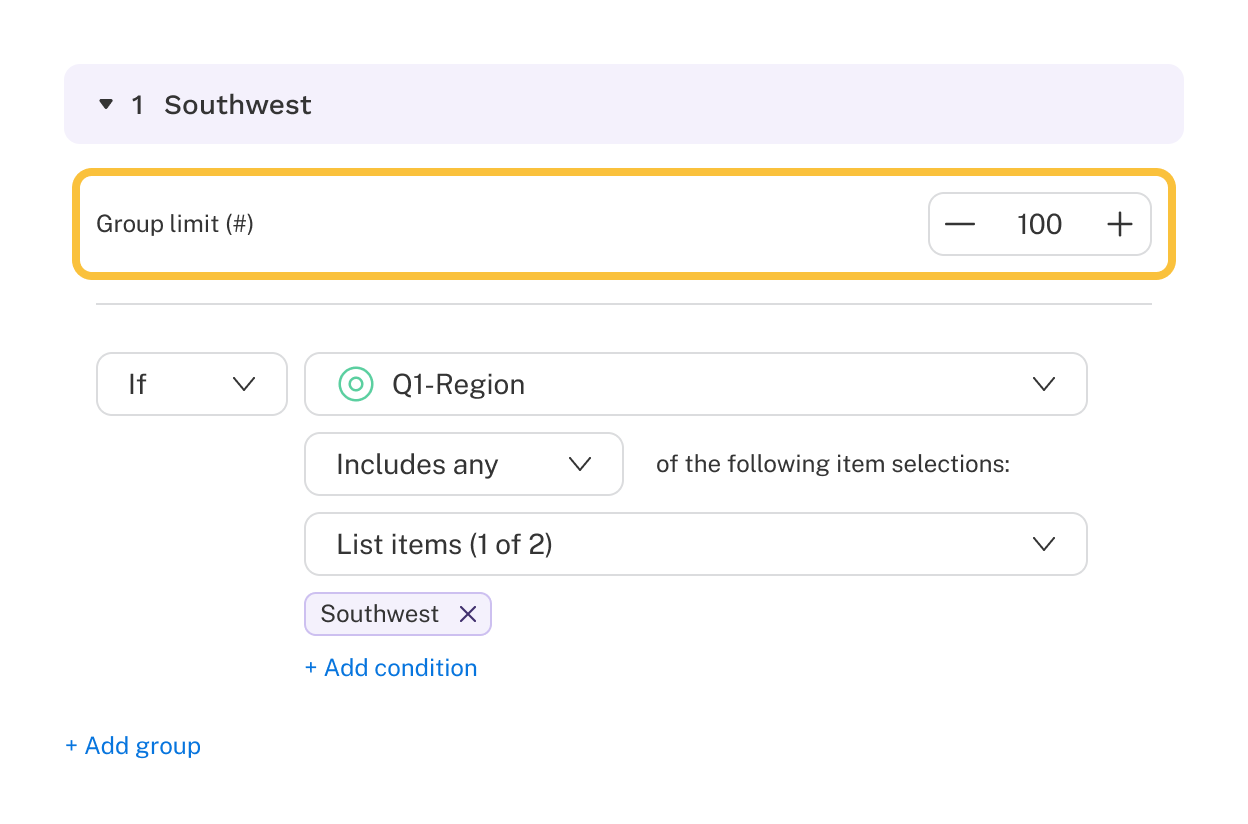
The group limit defines the maximum number of respondents that can be assigned to a group. Limits can be set as exact counts or percentages — switch between these in the quota settings. Setting a group limit is optional; turn it off if you only need to categorize respondents without managing caps.

A text box labeled group limit has a value of 100 entered.

Over-sampling

Respondents qualify for a group when they reach the quota, but are only counted toward the limit once they complete the survey. This means over-sampling can occur. For example, if one spot remains in a group and ten respondents qualify simultaneously, all ten may be assigned — resulting in a final count higher than the limit.

Building conditions

Conditions define whether a respondent qualifies for a group. Quota groups are evaluated in order based on the selected fill method, so both order and specificity matter.

Add additional conditions using + Add condition, joined by And or Or. And conditions are evaluated before Or conditions, similar to how multiplication takes precedence over addition. For example:

If Q15 = 5
Or Q15 = 7
And Q16 = 1

Evaluates as:

Q15 = 5 OR (Q15 = 7 AND Q16 = 1)

For a full walkthrough of condition building, see the Skip logic article.

Skip to destination

Respondents assigned to a group automatically proceed to the next question. Unassigned and over-quota respondents are each redirected to their own configured destination. These are set independently: for example, send unassigned respondents to a disqualified ending and direct over-quota respondents to a separate over-quota ending.

Skip to destinations are set at the bottom of the card.

Fill method

The fill method determines the order in which quota groups are considered for assignment.

  • Sequential: The default. Groups are evaluated top to bottom.
  • Least fill (counts): Groups are prioritized by the number of respondents currently assigned, from lowest to highest. Ties are broken randomly.
  • Least fill (percentage): Groups are prioritized by remaining capacity as a percentage of the limit, from highest to lowest. Unavailable if group limits are off.
  • Random: Groups are evaluated and assigned randomly.

Qualification vs assignment

When a respondent reaches a quota, two things are evaluated and recorded separately:

  • Qualification: Whether the respondent met a group's logic conditions.
  • Assignment: Whether the respondent was placed in the group — meaning they qualified and there was room within the group limit.

If a respondent qualifies but the group is full, they are marked as over quota. If they don't meet any group's conditions, they are marked as unassigned. If the Assignments setting is set to Multiple, a respondent can be assigned to as many groups as they qualify for, up to a defined number.

Reporting

Qualifications

Each group records one of the following qualification values:

  • 1 (Qualified): The respondent met the group's conditions.
  • 0 (Unqualified): The respondent did not meet the group's conditions.
  • -1 (Over quota): The respondent met the group's conditions but the group was full.
  • Blank: The respondent did not encounter the quota.

Assignments

For single-group assignments, one column is recorded:

  • Group value or label: The group the respondent was assigned to.
  • -1 (Over quota): The respondent qualified but the group was full.
  • 0 (Unassigned): The respondent did not meet any group's conditions.
  • Blank: The respondent did not encounter the quota.

For multiple-group assignments, a column per group:

  • 1 (Assigned): The respondent qualified and was placed in the group.
  • 0 (Unassigned): The respondent did not meet the group's conditions.
  • Blank: The respondent did not encounter the quota.

Example

A survey includes a soda question followed by a quota with three groups: 1. Pepsi, 2. Coke, 3. Sprite. Single assignment, sequential fill.

Respondent 1 Respondent 2 Respondent 3
Pepsi: -1 Pepsi: 0 Pepsi: -1
Coke: 1 Coke: 0 Coke: 0
Dr. Pepper: 1 Dr. Pepper: 0 Dr. Pepper: -1
Soda quota: 2 Soda quota: 0 Soda quota: -1
  • Respondent 1 drank all three brands and qualified for all three groups. Pepsi was full, so they were assigned to Coke (value 2) — the next available group in sequential order.
  • Respondent 2 didn't drink any of the three brands, so they didn't qualify for any group and were marked as unassigned (value 0).
  • Respondent 3 drank Pepsi and Dr. Pepper and qualified for both groups, but both were full — marked as over quota (value -1).

N calculation

  • Single assignment: N is the total number of respondents assigned to a group.
  • Multiple assignment: N is the total number of respondents who encountered the quota, including those not assigned.

Note that multiple-group assignment quotas produce non-exclusive categorical data, which can create challenges in crosstabs. See the Crosstabs article for more.

Quota data exports

Download individual quota and group values per respondent from Data > Data records. Quota summaries and charts are also available under Data > Summary — unlike other question types, quota visuals are found in Data rather than Analysis.