Email

Introduction

Use email to send survey invitations to respondents. Discover sends emails through your own email account; there's no shared sending service. Before getting started, you'll need an email account and at least one contact list configured in Discover settings.

Email

Sending an email

From the Invites tab under Share, click Create email and fill out the form. All fields are required. Changes are saved automatically as you go.

Recipients

  • To: Select a contact list. 
  • From: Select an email account. 
  • Survey link: Determined by whether a unique ID variable exists in the variable manager. 
    • Anonymous: No unique ID is set. Response tracking and reminder emails are disabled. 
    • Unique: A unique ID is appended to the survey URL, enabling response tracking and reminder emails. 
  • Variable mapping: Choose what data is brought into the survey for each recipient. See Variable mapping below.

Note: Contact lists and email accounts referenced in To and From are pulled from the survey owner's account. Collaborators can view and change these selections; they'll see the name of each contact list and its recipient count, but not the contacts themselves.

Message

  • Subject: The subject line shown in the recipient's inbox.
  • Preview text: The preview snippet shown after the subject line in the inbox.
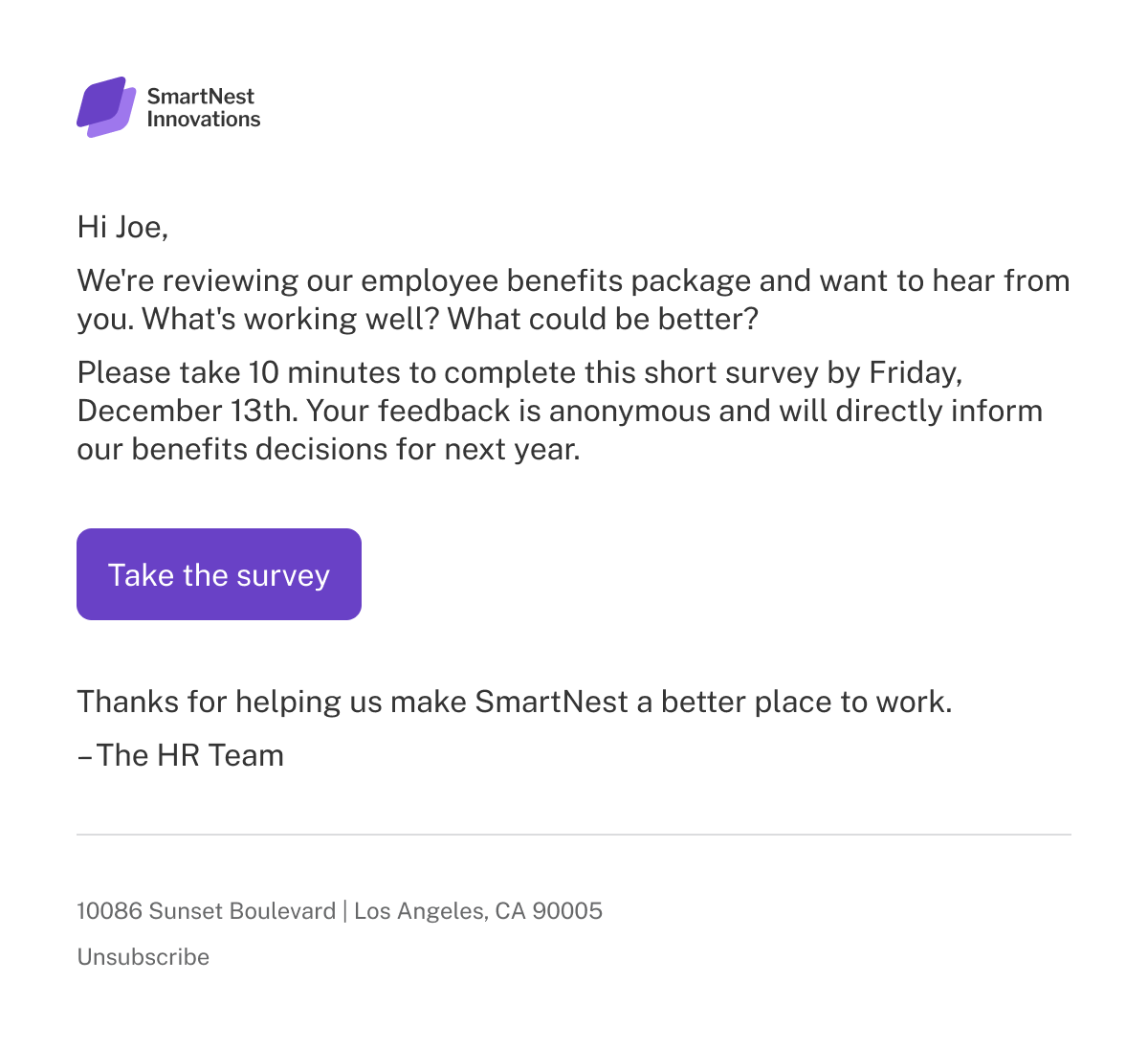
  • Message: The email body. Pre-populated with a button linked to open the survey, an unsubscribe link, and a script that inserts the mailing address associated with the selected From account. If no address is attached to the account, nothing is displayed in its place. Any of these can be removed or reinserted.

Send time

Send immediately or schedule for a later date and time. A scheduled email can be edited or unscheduled at any time before it sends. Click Unschedule to cancel the scheduled send and return the email to a draft.

Variable mapping

Customize the survey link sent to each recipient and control what data is brought into the survey for them. Any variables added in the Variable manager will appear here and can be configured individually.

Most variables can pull their value from a contact field or use a static value. Two variable types have their own fixed options: Unique ID (generate a unique value or use a contact field) and Language (use language values or a contact field).

Variables are split across two tabs based on how they're passed to the survey:

  • URL variables: Included in the survey link and visible to recipients.
  • Embedded variables: Passed to the survey silently and don't appear in the link.

Embedded variables require a unique link. URL variables can be used with either link type.

Since all mapped variables are represented in the Variable manager, they're available in areas like skip logic, segmentation, and data downloads.

Variable values brought into the survey via URL or embedding can be overwritten using variable logic elements.

URL variable values are encoded to ensure special characters in contact field data don't cause errors in the link.

Merge fields

A merge field inserts information like survey URLs, unsubscribe links, and contact details (first name, custom fields) directly into your email. All text fields support merge fields. Click the variable icon (Variable - Insert) in any field to insert one. 

Managing emails

Reminders

Reminders are follow-up emails sent to respondents who haven't completed the survey. They're only available for emails with unique links, since completion tracking requires respondent-level tracking.

To create a reminder, hover over a sent email in the emails table, click the options menu (More Menu), and select Create reminder.

A copy of the original email is created with all fields editable. The To field is automatically set to the original list; you can choose to send to Not started (never opened the survey), Incomplete (started but didn't finish), or both. This filter is applied at send time — only respondents who still haven't completed the survey will receive it.

Reminders are nested under the original email in the table. You can create as many as needed.

A reminder is only sent to a respondent if all the following are true at send time:

  • The original invite was successfully sent to the respondent.
  • The survey still has the same unique ID variable it had when the original invite was sent.
  • The respondent hasn't received a more recent invite to the same survey.
  • The respondent meets the selected criteria (not started, incomplete, or both).
If you change embedded variables for a reminder (add, rename, or remove them), those changes won't apply to respondents who have already started the survey.

Contacts added to a list after the original email was sent won't be included in reminders. To reach them, send a separate email.

Survey links expire 90 days after the invitation is sent. If a respondent has opened the survey, their link remains active until the survey is closed. Each reminder sent to a respondent restarts the 90-day window.

To stop accepting responses before links expire, close the survey.

Cancel send

Once an email is in the sending state, it can be cancelled. Emails are delayed 30 seconds before any messages go out — a buffer to catch last-minute mistakes. After this window, cancellation is still possible, but some contacts may have already been reached.

Once the cancellation is processed, the email status will update to Draft or Cancelled (with a timestamp of the last message sent), and you'll receive a send report confirming which contacts received the message and which did not.

From there:

  • If no emails were sent: Fix the email and resend.
  • If some emails were sent: Two steps are needed to reach everyone on the list. For contacts who didn't receive the email, use the send report to create a new list and draft a separate email to them. For contacts who did, send a reminder to communicate any corrections.

Sending a test

Before sending to your contact list, you can send a test email to review how it will look. Click Send test and enter one or more addresses manually or select from the survey's collaborators.

If the message includes merge fields, values will be drawn from the first contact in the selected list.

Invites list

As emails are created, they are added to the list of survey invites. Each email displays a status, and statistics once sent.

A contact can only have one active invite per survey. If you send a second email to the same list, statistics for the previous email will stop updating and new unique ID values will be generated. Previous variable mapping values won't be carried over.

Sent statistics

Once an email is sent, several values are updated. These values require link tracking, so they are only available if the survey link included a unique ID in the variable manager.

  • Recipients: The number of invitations sent.
  • Not started: Respondents who have not opened the survey.
  • Incomplete: Respondents who opened the survey but didn't finish.
  • Complete: Respondents who completed the survey and reached a survey ending.

Email statuses

Email statuses are shown in the status column. For sent emails, a timestamp is included next to the status indicating the time it was sent.

  • Draft: The email has been started but not sent or scheduled.
  • Scheduled: The email has been scheduled to be sent at the listed time.
  • Sending: The email is in the process of sending. Percent progress is shown.
  • Sent: The email was sent to every recipient on the list. Some emails may not be delivered (invalid address, inactive account, etc.), but they were successfully sent.
  • Partially sent: An issue occurred during sending that prevented some contacts from being reached.
  • Cancelled: The email was cancelled after some contacts were reached. If no contacts were reached, the email is changed to a draft.
  • Error: A major error occurred. This may happen due to the SMTP connection failing, or a contact list or email account being deleted.

Liquid templating

The emailer supports dynamic content through Liquid, a templating language that allows logic and personalization to be written directly into the email body.

Multiline functions can only be used in the HTML view of the message body. The rich text editor adds extra markup that breaks the script.

Learn more about Liquid.

Example 1 — Conditionally display text based on the presence of a value

If the contact doesn't include a first name, this example displays “Dear customer, as a greeting instead of “Dear Franklin,.

If the contact list variable “first_name” is not blank (it has a value, such as Franklin), the email will display “Dear Franklin,” at the beginning. If “first_name” is blank, the email will display “Dear customer,” instead.

{% if first_name != blank %}
Dear {{ first_name }},
{% else %}
Dear customer,
{% endif %}

A single-line version can be used in the rich text editor:

Dear {{ first_name | default: "employee" }},

This displays “Dear employee, unless a first name is present, in which case it shows “Dear Franklin,.

Example 2 — Swap text based on a value

This example displays different text depending on which team the recipient is on, with department being one of the contact list variables that was imported.

{% if department == 'Product' %}
As a member of the product team, we'd love to hear your thoughts on our user experience.
{% elsif department == 'Design' %}
Since you're on the design team, your creative insights would be especially valuable.
{% else %}
We'd appreciate your feedback on your recent experience.
{% endif %}

Rate limits

Discover applies default sending limits to avoid delivery issues that can arise from sending too quickly. These can be updated in email account settings.