Blocks

Overview

Blocks are containers that organize all survey elements, including questions, pages, and logic groups. Every survey has at least two blocks:

  • Questions block: Contains the main survey content.
  • Survey endings block: Contains survey endings.

When you add the first element to your survey, it's automatically placed into a block. A survey endings block is also added automatically at the end.
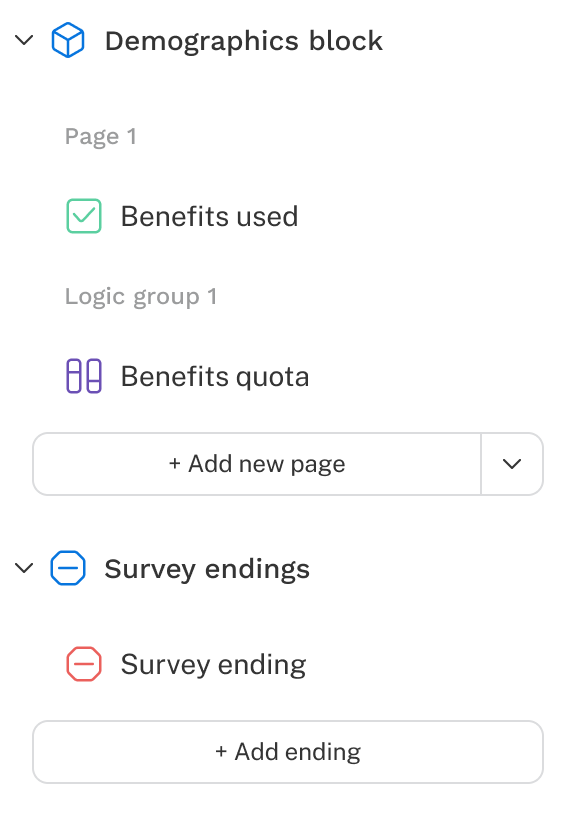
Two survey blocks containing various questions are shown.

Types of blocks

There are two types of blocks: standard and special.

Standard blocks contain all survey elements except the language question and survey endings. They're fully customizable: elements can be moved in or out, and blocks can be reordered and renamed.

Special blocks have fixed positions and limited contents:

  • Language question block: Always the first block in the survey. Only contains the language question (multilingual surveys only).
  • Survey endings block: Always the last block. Only contains survey endings.

Block management

Create

When you add a question to your survey, a block is created automatically. To add additional blocks:

  1. Navigate to the end of an existing block.
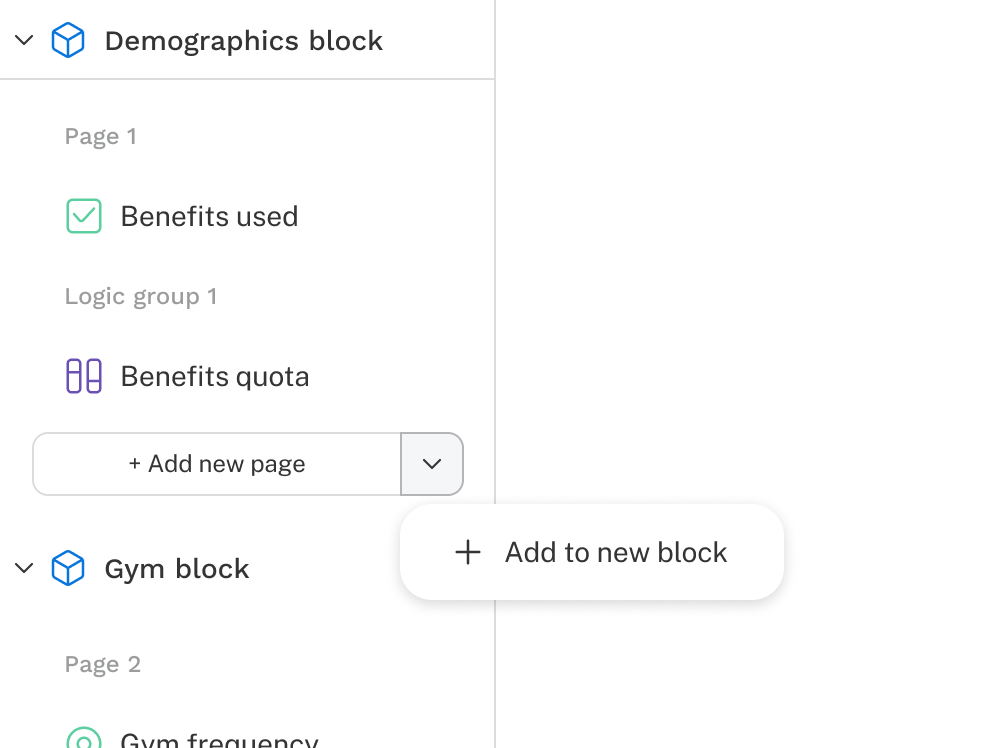
  2. Click the dropdown icon next to + Add new page.
  3. Select Add to new block.
  4. Choose an element to add.

The element is added to a new page within the new block.

The dropdown button next to the add new page is open with a list showing an option to add to new block.

Merge

To merge a block's contents into the block above it:

  1. Click the options icon (More Menu) on the block you want to merge.
  2. Select Remove block & merge up.

All elements from the selected block move into the block above it. The selected block and its settings are deleted.

Split

To split a block into two:

  1. Click the options icon (More Menu) on the element where you want to split.
  2. Select Split to new block.

The selected element and everything below it (up to the next block) move into a new block.

Delete

To delete a block:

  1. Click the options icon (More Menu) on the block.
  2. Select Delete and confirm.

Deleting a block permanently removes all questions, pages, and associated data it contains. A block is also deleted automatically if its last question or page is removed.

Reorder

To reorder a block, click the options icon (More Menu) on the block in the navigation panel, select Move, choose where to place it, and click Move.

Collapse

Click the collapse icon next to a block name to collapse it in the navigation panel. This is useful for reducing clutter once you've finished authoring a section.

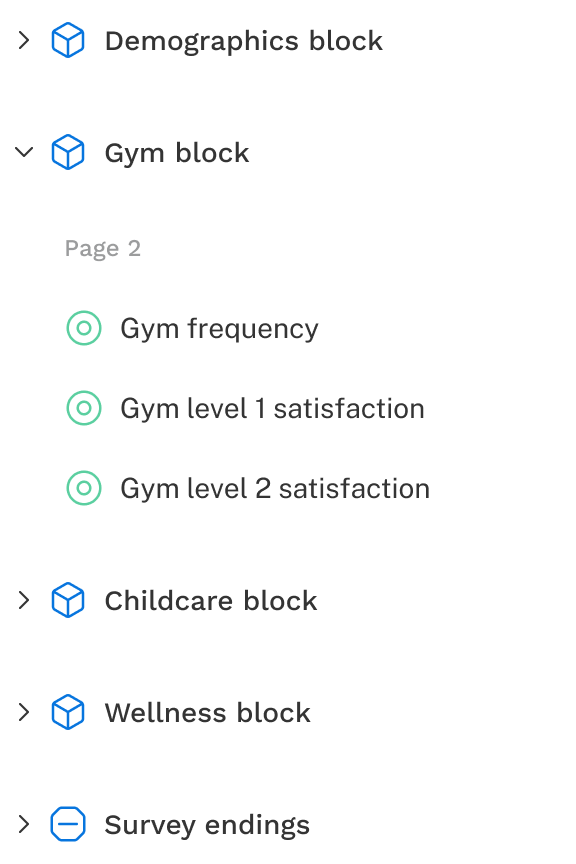
The question navigation pane is shown with several blocks collapsed.

Block settings

Page randomization

Shuffles the order of pages within a block for each respondent. Enable it via the block's options menu. See the Randomization article for more details.

Display logic

Apply display logic to a block to conditionally show it based on specific criteria. See the Display logic article for more details.

Collections

Block collections group multiple blocks together so shared settings can be applied across all blocks in the group.

Creating a collection

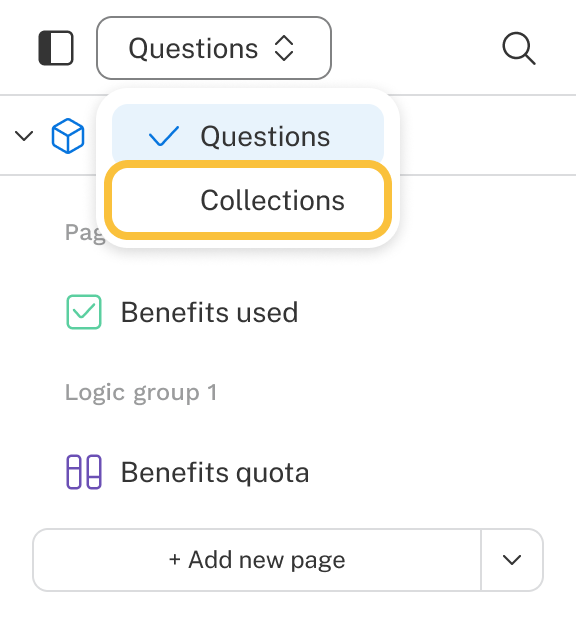
  1. Switch from the Questions view to the Collections view.
    Collections View
  2. Hover over the first block you want to add and click the Add to collection icon (Create Collection).
  3. Add additional blocks by dragging and dropping them, or using the Move dialog (available in the options menu on a block).
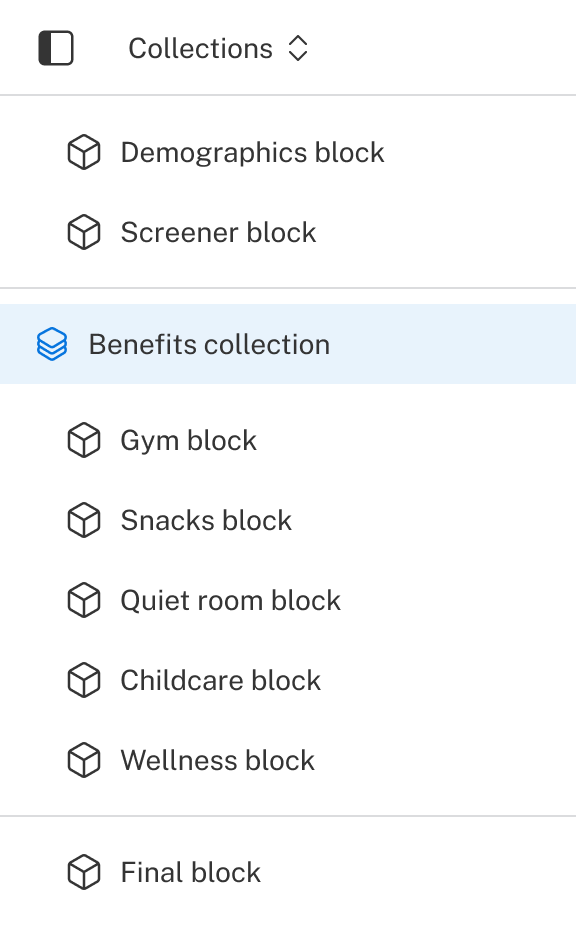
Collection Example

Ungroup a collection

To ungroup a collection, click the options icon (More Menu) on the collection and select Ungroup. All blocks return to the main survey structure, and any collection-level settings such as randomization no longer apply.
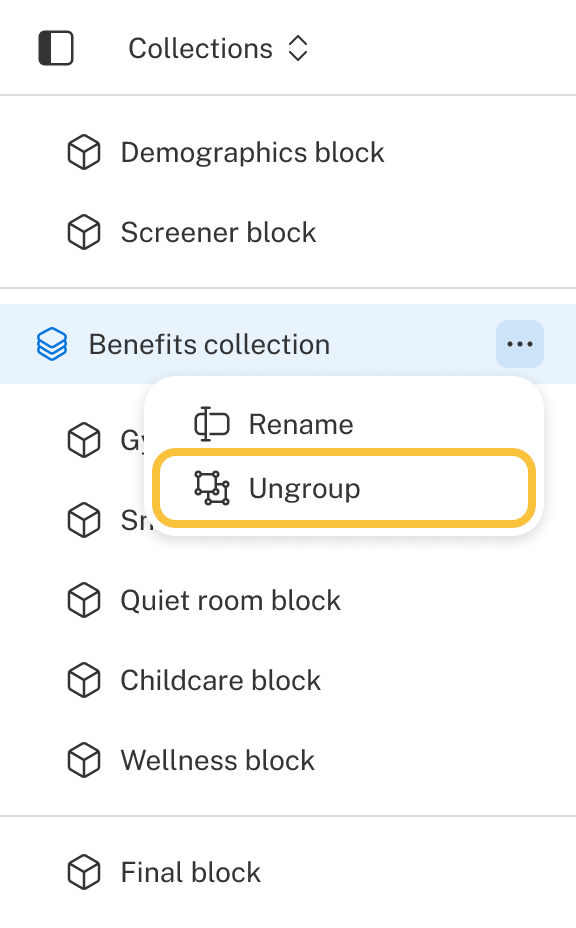
The options menu is open on a collection with the Ungroup option highlighted.

Collection behavior

Collections offer several options for controlling which blocks respondents see and in what order.

Show all

The default behavior. All blocks in the collection are shown in survey order.

Show a subset

Specify how many blocks to show each respondent. Optionally, randomize their order or prioritize the least-seen blocks.

Block randomization

Block randomization shuffles the order of blocks within a collection for each respondent. This setting is applied at the collection level and can be enabled through the options menu for the collection. For more details, refer to the block randomization section of the randomization article.

Block randomization

Shuffles the order of blocks within a collection for each respondent. Enable it via the collection's options menu. See the Randomization article for more details.

Follow a list

Use a list to determine which blocks are shown. A standard list is generally not recommended since it applies no logic and results in all blocks being shown. A dynamic list is preferred, as its full range of logic functions — including randomization, list max, and others — determines which blocks appear for each respondent.

When a dynamic list is selected, a table shows all list items alongside their corresponding blocks. During the survey, the dynamic list is generated and respondents only see the blocks corresponding to their list items.