
Introduction to lists

Introduction

Lists are a fundamental building block for most question types. When you add a question with response options, a new empty list is created automatically. Lists can be modified through the list selection dropdown on a question or in the list manager.

List selection

Select and modify a list using the dropdown on any question.
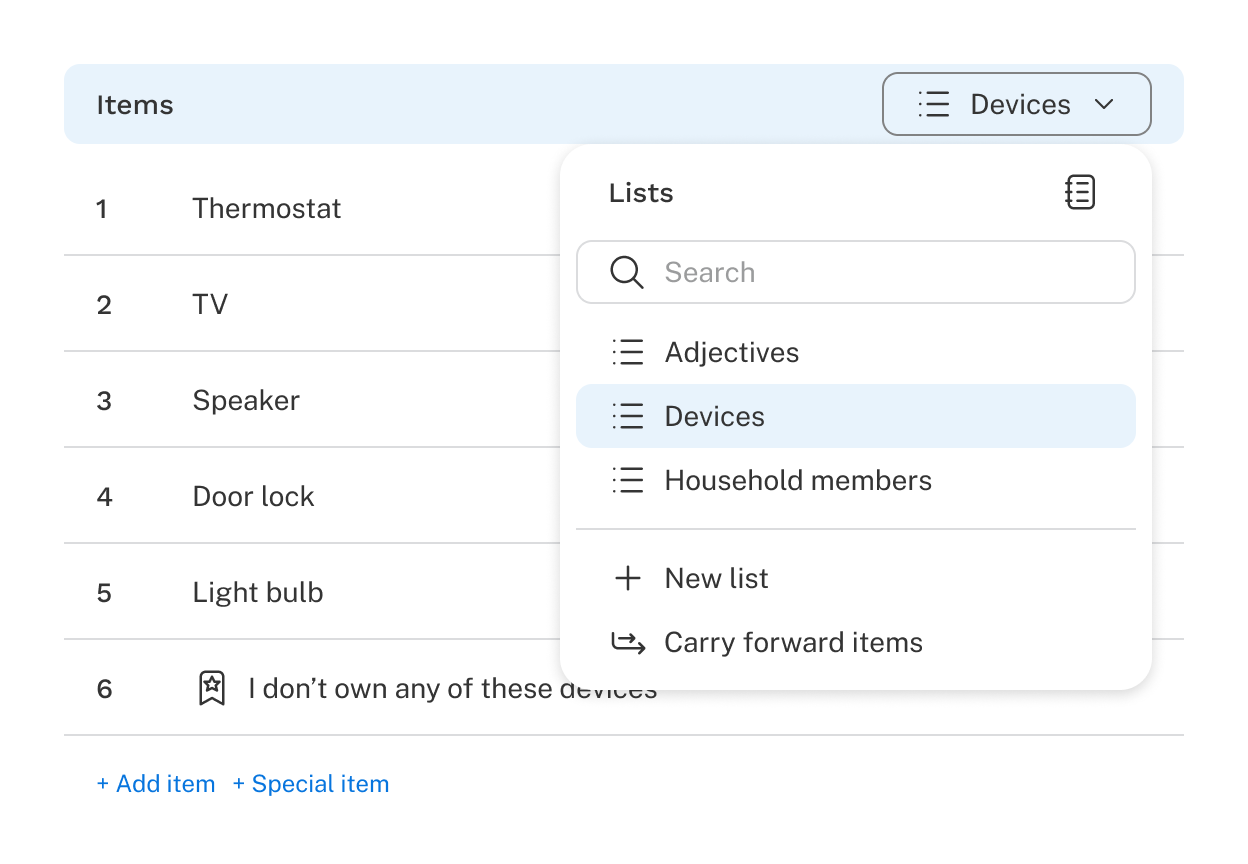
List Selection Dropdown

List manager

The list manager gives you a single view of all lists in your survey.

List Manager

Access it from the Tools dropdown or the list dropdown on any question.

Interface highlighting the locations to access the list manager.

List management

Creating

A new list is created automatically with each question, but you can start fresh by clicking the plus icon (Add – Plus – New) in the list dropdown or manager.

Renaming

Lists are named automatically based on their question — a list created by Q1 is named "Q1List." Renaming the question will update the list name to match, until you manually rename the list yourself.

Reusing

Once a list has been created, you can reuse it in other questions by selecting it from the list dropdown on any question card.

Reuse Lists by clicking into the dropdown above the question list.

Keep in mind that changes to a shared list affect all questions using it. Fixing a typo is convenient, but deleting an item could disrupt logic or settings in another question. Check all questions using a list before making changes. A reuse icon (Reuse List) appears in the dropdown, and a message above the list indicates all instances where the list is in use.

Dropdown showing all instances of a list.

Special items may behave differently across question types. For example, a text entry item works in a multi-select question but not in a MaxDiff, where only the item text appears. In that case, duplicating the list and removing the special item for the MaxDiff version is the better approach.

Changing items

Changing list item text updates all respondent records to reflect the new text. For example, correcting "Bleu" to "Blue" is harmless — but changing "Blue" to "Red" means all records will show respondents chose "Red," even if they originally saw "Blue." Use caution when editing list items in a published survey.

Reordering items is also reflected in the data export. If "Yellow" was item 2 for the first half of data collection and later moved to item 4, all records will show item 4.

Deleting a list item removes it from the data export and analysis entirely — respondent records will no longer show that item was ever selected.

Duplicating

Duplicate a list to make a independent copy. Changes to one will not affect the other.

Deleting

Deleting a list removes it from all questions, logic, and quotas it is used in. Proceed with caution.

Special items

Special items can be placed anywhere in the list, but when randomization is on, they're pushed to the bottom in their original order relative to each other. For example, if items 2 and 4 are special, a randomized list might show: 5, 6, 1, 3, 2, 4 — with the non-special items randomized and the special items anchored at the bottom in their defined order. To add a special item, click + Add special item at the bottom of the list, or click the options icon on an existing item and toggle the appropriate setting.

Special Items

Text entry

Adds an open-end input field to a list item, letting respondents type their own answer. For example, "Other (please specify)" alongside a list of predefined options. More than one item can have text entry enabled.

The list item that has the text entry option included is highlighted.

This is how the question will appear to respondents:

A single-select question asking respondents what their favorite genre of music is. Their are several genres listed, and the last option is other, please specify.

Exclusive option

When selected, automatically unchecks all other items in the list — useful for options like "None of the above." More than one item can be set as exclusive. This option is only available in questions that allow multiple selections.

A single-select question asking respondents what their favorite genre of music is. There are several genres listed, and the last option says I don't like any of these.