
Test survey

Introduction

Testing your survey is a crucial step before going live. Test mode lets you preview the survey as a respondent would experience it, and collects data separately from your live responses.

To start, click Test in the top menu bar. If your survey has any errors, the audit panel will appear. Resolve these before testing.
Test Button

Test toolbar

A toolbar at the top of the screen provides access to several features while in test mode.

Skip to a question

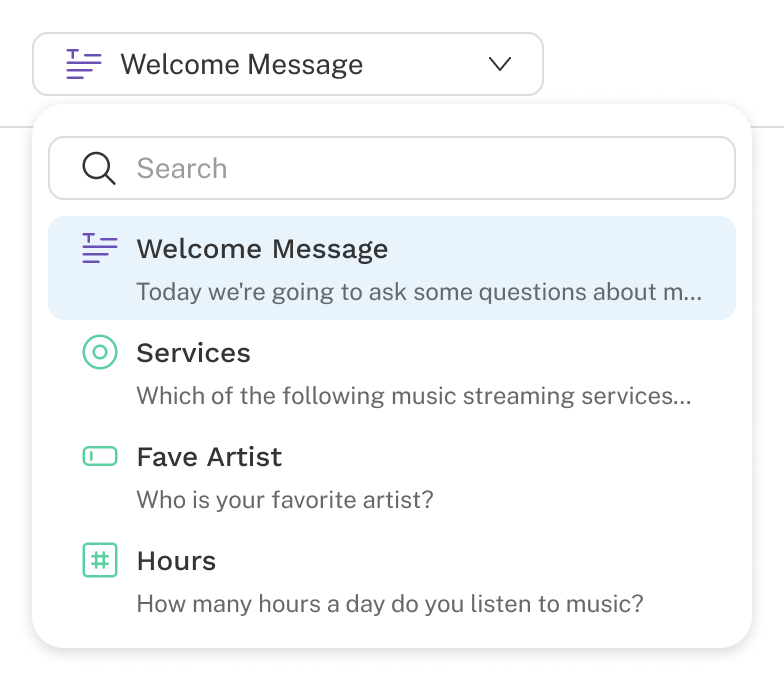
Jump to any question using the Skip to dropdown.

Skip to Dropdown
Responses aren't saved until Next is clicked. Make sure to advance before skipping, especially when testing skip logic or quotas. Once a survey ending is reached, the dropdown is disabled and respondents can't go back, just as with a live survey.

Share the test survey

Click Copy test link to share the test survey with others. No login is required to access it. Responses collected through the test link are included in your test data and available for analysis.

Copy Test Link

Accessing test data

New surveys default to viewing test data. After testing, results are available in the Data and Analysis tabs. Each time you publish, these tabs automatically switch to the live dataset.

Switch between datasets using the button at the top of the Data tab. Analysis customizations — such as crosstabs, simulator products, or TURF configurations — don't carry over between test and live data in either direction.

Switch the data set by opening the fly out menu in the data tab.

Tips

  • Clicking Test publishes a test version of the survey. Changes to the survey won't appear in analysis until you click Test again.
  • If your survey uses unique IDs, an ID can't be reused unless the survey is reset.
  • URL variables are included in the test link, so you can assign and test variable values directly. These will appear in your test data export.